Tag Programmer
Tag Programmer programs a batch of tags. It is the successor to Qt Program and works the same way: for each tag it writes the firmware, tests the tag, leaves it IDLE ready for Tag Monitor, and adds a line to the same CSV record. Help ▸ Tag Programmer User Guide opens this page.
The difference is the programmer. Tag Programmer writes the firmware itself, through the base, so STM32CubeProgrammer is not needed. It is also faster: a BitTag takes about 10 seconds from start to finish.
Programming erases the tag. Download its data with Tag Monitor first.
Before You Start
- On Linux, Tag Programmer needs WebKitGTK 4.1, which GNOME desktops already
have. Elsewhere install it once, for example
sudo apt install libwebkit2gtk-4.1-0on Ubuntu or Debian. Windows 10 and 11 and macOS need nothing extra. - Plug in the base station or programmer. With one base plugged in, it is used. With several, Tag Programmer asks which; Station ▸ Choose Base… switches to another at any time.
- The first time Tag Programmer opens, it asks whether to attach automatically. Connecting to a tag restarts it, which ends a deployment that is running. On a programming bench, answer Yes. You can change this later under Station ▸ Attach Automatically.
- The first time, it also asks where to keep the record. The default is
Documents/Tag Programmer/programmed-tags.csv, the same file Qt Program uses, so both programs can add to one record. Choose Open Existing… to keep using a record kept elsewhere.
The Window
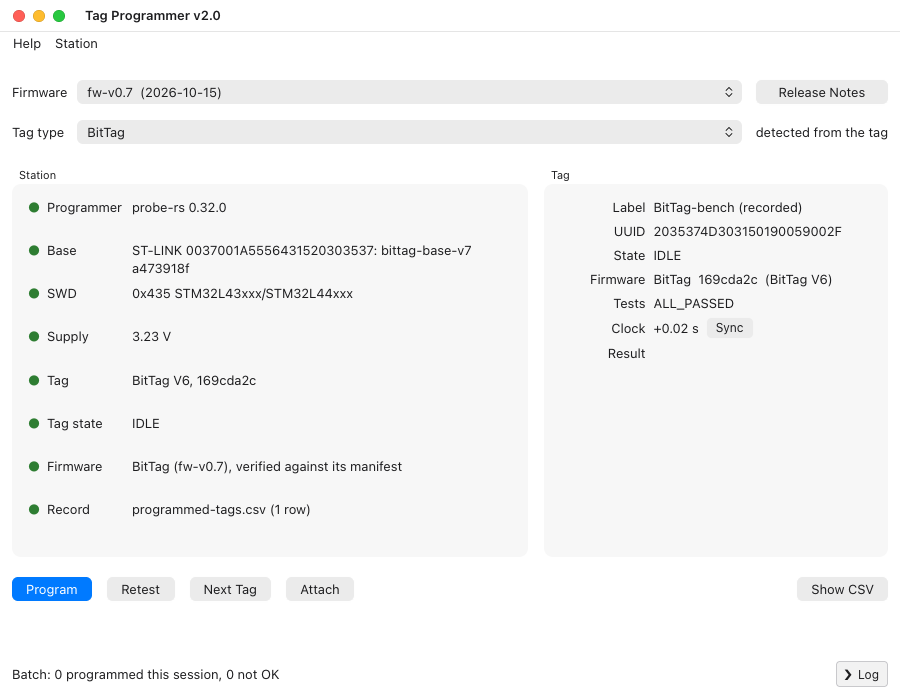
The window is laid out as Qt Program's; see The Window for the firmware list, tag type, Station lights and Tag panel. Two lines read differently:
- Programmer names the programming software built into Tag Programmer,
for example
probe-rs 0.32.0. It is always ready; there is nothing to choose. - Base shows the base's serial number, and for a base with current
firmware also its type and firmware version, for example
ST-LINK 0037…: bittag-base-v7 a473918f. Older bases showolder base firmware: field-safe driver. Both kinds program tags.
Program a Batch of Tags
- Choose the Firmware and check the Tag type. Both are remembered.
- Put a tag in the base. With automatic attach on, it connects by itself; otherwise press Attach.
-
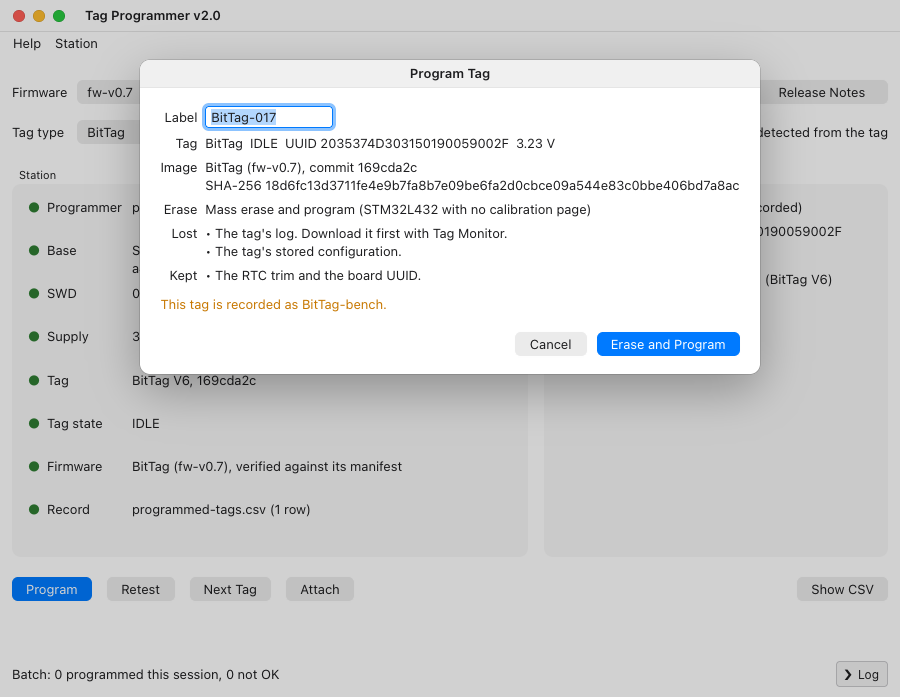
Press Program, type the label written on the board, check the rest of the dialog, and choose Erase and Program. The dialog says what will be erased, what is lost and what is kept, and notes in orange anything to check, such as a tag already recorded under another label.
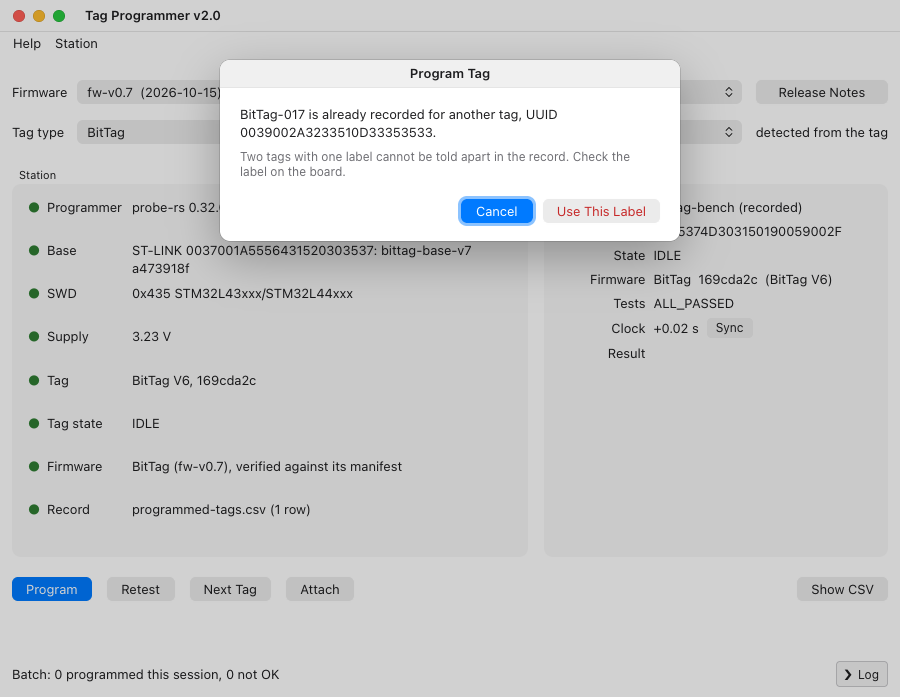
If the record already has that label for a different tag, Tag Programmer asks before going on: two tags with one label cannot be told apart afterwards, so check the label on the board. A blank board's UUID is not known until it is programmed, so for one of those it asks whenever the label is in the record at all. Cancel is the default.
-
Wait for the result. Tag Programmer:
- stops the tag if it is running, and has its own firmware erase its log;
- erases internal flash as the image requires, writes the image and checks it;
- reconnects, sets the clock and runs the self-tests;
- adds a line to the record, and leaves the tag IDLE.
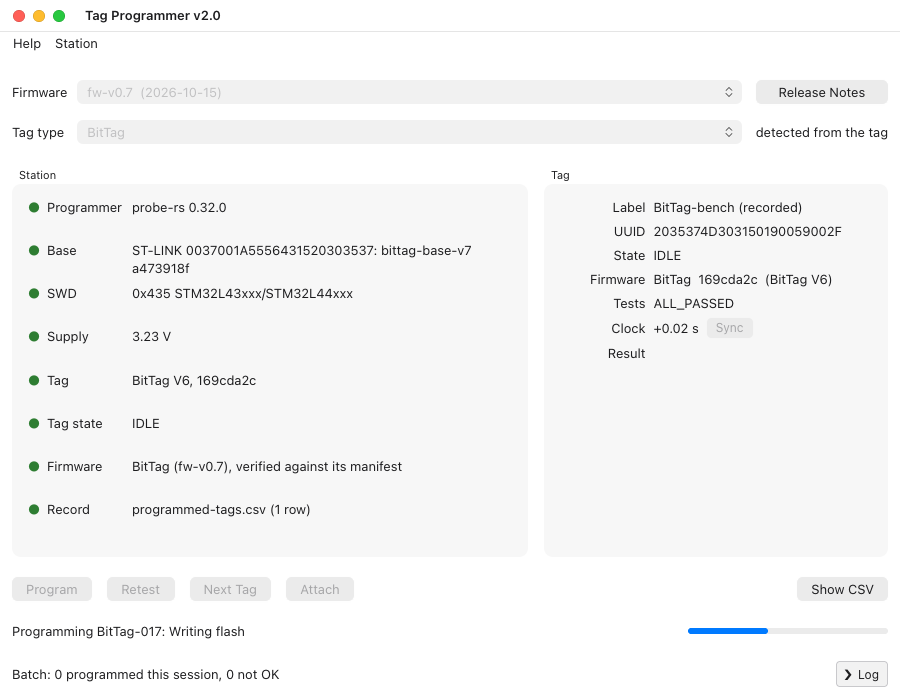
The line under the buttons names the step, with a progress bar, and the buttons are disabled until it finishes.
-
Press Next Tag, put the next tag in, and press Attach (or wait for it to attach automatically). Go back to step 3.
Retest runs the self-tests again without programming. It reads the tag's flash back, compares it with the release the tag reports, and adds a line to the record.
The Record and What Programming Keeps
The record has the same columns and results as Qt Program's; see
The Record. Its last column says
tagprogram-rs and the version, so lines written by either program can be
told apart. What is erased and what is kept is also the same; see
What Programming Keeps.
Troubleshooting
Qt Program's Troubleshooting applies, except that there is no STM32CubeProgrammer to find. When programming fails, the message says why. Press Log at the bottom right to see each step, including the programmer's progress (erasing, programming, verifying).