Qt Program
Use Qt Program (Tag Programmer) to program a batch of tags. For each tag it writes the firmware, tests the tag, leaves it IDLE ready for Tag Monitor, and records the result in a CSV file. Help ▸ Tag Programmer User Guide opens this page.
Programming erases the tag. Download its data with Tag Monitor first.
Before You Start
-
Install STMicroelectronics' STM32CubeProgrammer. Tag Programmer finds its command-line tool,
STM32_Programmer_CLI, in the usual install folders (on a Mac,STM32CubeProgrammer.appunder/Applications,~/Applicationsor~/Software), on thePATH, and in theSTM32CUBEPROGRAMMERandSTM32_PRG_PATHenvironment variables. If it is not found, press Choose… on the Programmer line (or Station ▸ Choose Programmer…) and pickSTM32CubeProgrammer.appon a Mac, orSTM32_Programmer_CLIitself. The choice is remembered.Where the installer puts it on each system (version 2.22 and 2.23):
System STM32_Programmer_CLImacOS /Applications/STMicroelectronics/STM32Cube/STM32CubeProgrammer/STM32CubeProgrammer.app/Contents/Resources/bin/STM32_Programmer_CLIWindows C:\Program Files\STMicroelectronics\STM32Cube\STM32CubeProgrammer\bin\STM32_Programmer_CLI.exeLinux ~/STMicroelectronics/STM32Cube/STM32CubeProgrammer/bin/STM32_Programmer_CLIOn a Mac the tool is inside the application bundle, which the Finder and file dialogs show as a single file. Choosing
STM32CubeProgrammer.appis enough. To see the folder in the Finder, right-click the app and choose Show Package Contents. Some releases keepbinunderContents/MacOsrather thanContents/Resources; Tag Programmer looks in both. From Terminal, the tool's version shows whether you have the right path:- Plug in the base station or programmer. With one base plugged in, it is used. With several, Tag Programmer asks which; Station ▸ Choose Base… switches to another at any time. - The first time Tag Programmer opens, it asks whether to attach automatically. Connecting to a tag restarts it, which ends a deployment that is running. On a programming bench, answer Yes. You can change this later under Station ▸ Attach Automatically. - The first time, it also asks where to keep the record: a CSV file with one line for every tag programmed. The default is"/Applications/STMicroelectronics/STM32Cube/STM32CubeProgrammer/STM32CubeProgrammer.app/Contents/Resources/bin/STM32_Programmer_CLI" --versionDocuments/Tag Programmer/programmed-tags.csv.
The Window
-
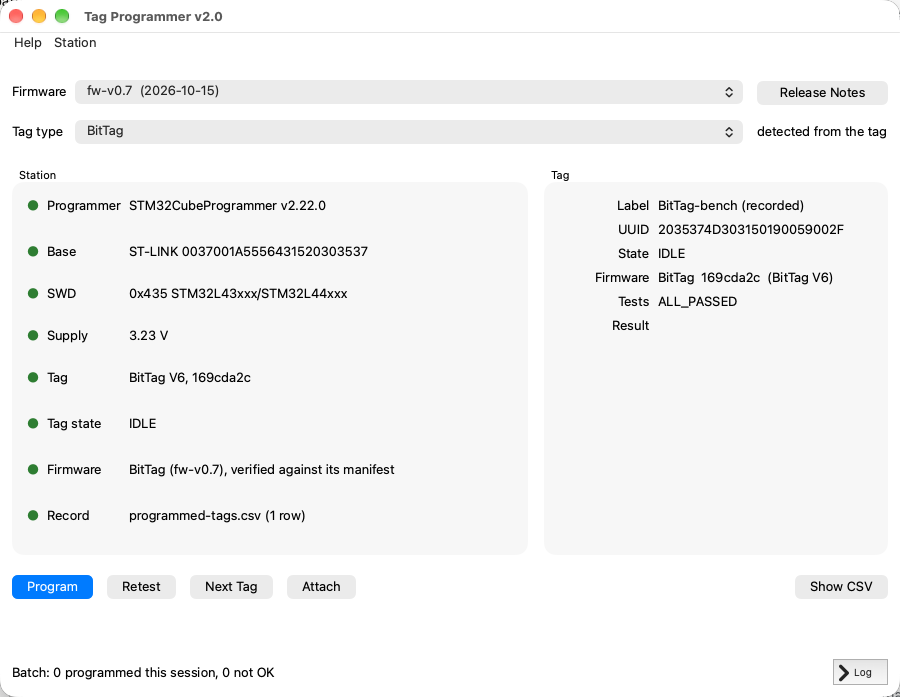
Firmware lists the published firmware releases, newest first, then ELF files you have used, then Other ELF file…. A release is downloaded the first time you choose it, then checked against the record of what was built. Release Notes opens the release's page, which says which tags it was qualified on. If the release has not been qualified for the chosen tag type, the Firmware light turns amber and the Program dialog says so. You can still program, for bench work, but do not fly those tags.
Choose the latest release qualified for the tag type you are programming. The newest release is not always qualified for every tag type, so an older one may be the right choice. - Tag type is filled in from the tag when its firmware answers ("detected from the tag"). Choose it yourself for a new, blank board. - Station shows a light for each check: green is ready, amber needs attention, red must be fixed before you can program. Each line says what is wrong and how to fix it. Hover over a line to see the whole message. - Tag shows the attached tag's label (if it is in the record), UUID, state, firmware, self-test result, clock, and the result of the last program. Clock is the tag's clock minus this computer's; beyond 2 seconds it turns amber. Sync sets the tag's clock. Programming and Retest set it again after the self-tests, which disturb it.
Program a Batch of Tags
- Choose the Firmware and check the Tag type. Both are remembered.
- Put a tag in the base. With automatic attach on, it connects by itself; otherwise press Attach.
-
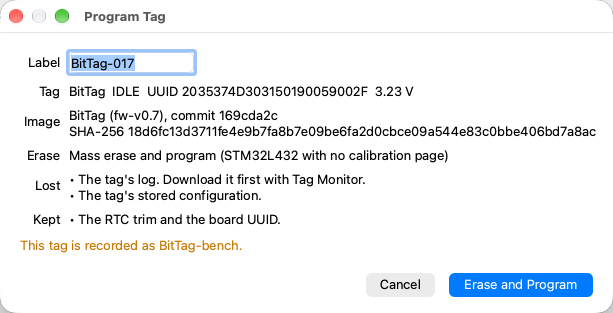
Press Program, type the label written on the board, and check the rest of the dialog. Choose Erase and Program.
-
Wait for the result. A typical tag takes under 30 seconds. Tag Programmer:
- stops the tag if it is running, and has its own firmware erase its log;
- erases internal flash as the image requires and writes the image;
- reconnects, sets the clock and runs the self-tests;
- adds a line to the record, and leaves the tag IDLE.
- Press Next Tag, take the tag out, put the next one in, and press Attach (or wait for it to attach automatically). Go back to step 3.
The line at the bottom of the window counts the tags programmed this session. Show CSV opens the folder that holds the record.
The Record
Each line of the CSV holds the label, the tag type, the UUID, the firmware
version (fw-vX.Y, or custom for a file you chose), the git hash the tag
reports, the date (UTC), the self-test result and the result. The remaining
columns are the image's SHA-256, its file name, the erase, the supply voltage,
the base's serial number and the Tag Programmer version.
Every attempt that reached the programmer is recorded, including failures:
| Result | Meaning |
|---|---|
OK |
Programmed, and the self-tests passed |
TEST_FAILED |
Programmed, but a self-test failed; see test_status |
MISMATCH |
The tag does not report the firmware just written |
NO_ANSWER |
Programmed, but the tag never answered |
PROGRAM_FAILED: … |
The programmer failed |
The record cannot be written while it is open in another program on Windows, such as Excel. Tag Programmer then disables Program until you close the file.
What Programming Keeps
| IMUTag | CompassTag | Other tags | |
|---|---|---|---|
| Erase | none: the image's pages only | every page below the calibration page | mass erase |
| Log data | lost | lost | lost |
| Stored configuration | lost | lost | lost |
| Calibration constants | kept | kept | (none) |
| RTC trim, board UUID | kept | kept | kept |
The log is lost because the tag erases it before it is programmed. An image for the wrong processor is refused. An image for a different tag type from the one the tag is running gets a warning.
Troubleshooting
- Base: No base on USB. Plug in the base. Tag Programmer notices it within a second.
- SWD: No STM32 target found. No tag is in the base, or it is not powered.
- Supply: above the STM32L432's 3.6 V maximum. Lower the supply before going on.
- Tag: No firmware answers. This is normal for a new, blank board: choose the tag type and program it. For a board that has run firmware, unplug the base, plug it in again, and press Attach.
- "Programmed, but the tag does not answer." A mass erase can leave the
processor starting its built-in bootloader until it is powered off. Unplug
the base, plug it in again, and press Retry. Give Up records
NO_ANSWER. - Firmware: does not match its manifest. The downloaded image is not the one that was released. Do not program it; tell the developers.
- Firmware: GitHub cannot be reached. Releases downloaded before are still offered. Otherwise choose an ELF file.
- STM32_Programmer_CLI failed. Press Log at the bottom right to see its output.
- Self-test failed. The tag is programmed and the failure is recorded.
Press Retest to run the tests again; each retest adds a line. Retest
also works on a tag you do not want to reprogram. It reads the tag's flash
back and compares it with the release the tag reports, then names that
release in its line, or records
MISMATCHif the flash is something else. The release must have been downloaded (choose it once under Firmware); otherwise the line records just the commit the tag reports.