Tag Monitor
Tag Monitor connects to a tag through a USB base and shows the information needed to prepare, check, run, and recover a data logging experiment. Use it to verify the tag identity and firmware, synchronize the tag clock, run self-tests, edit the tag configuration, start logging, download finished data, and inspect error messages.
Walkthrough
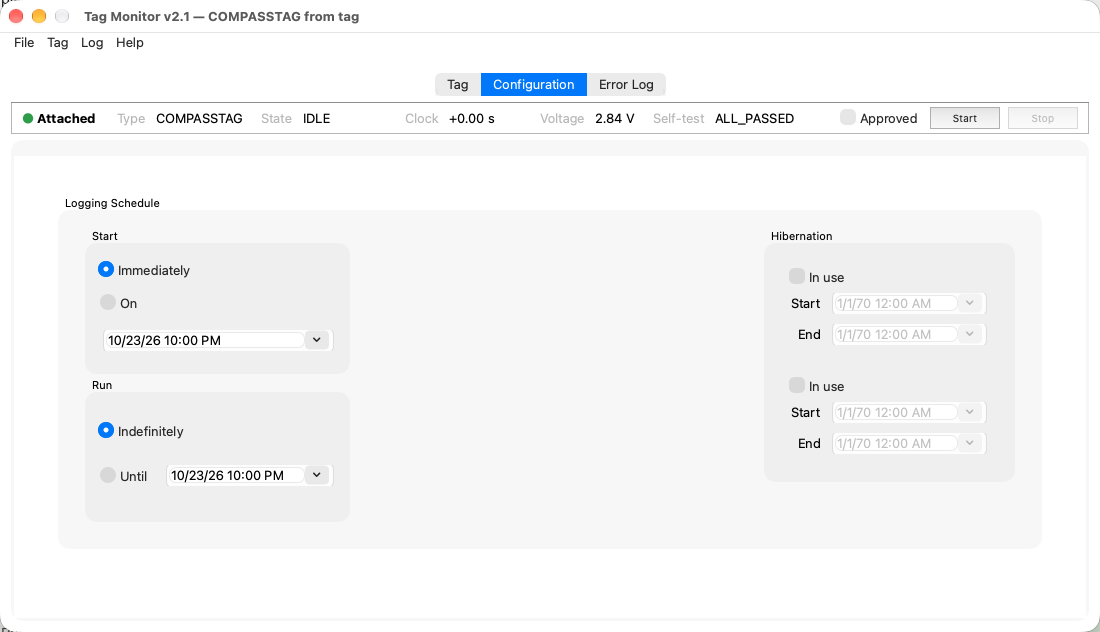
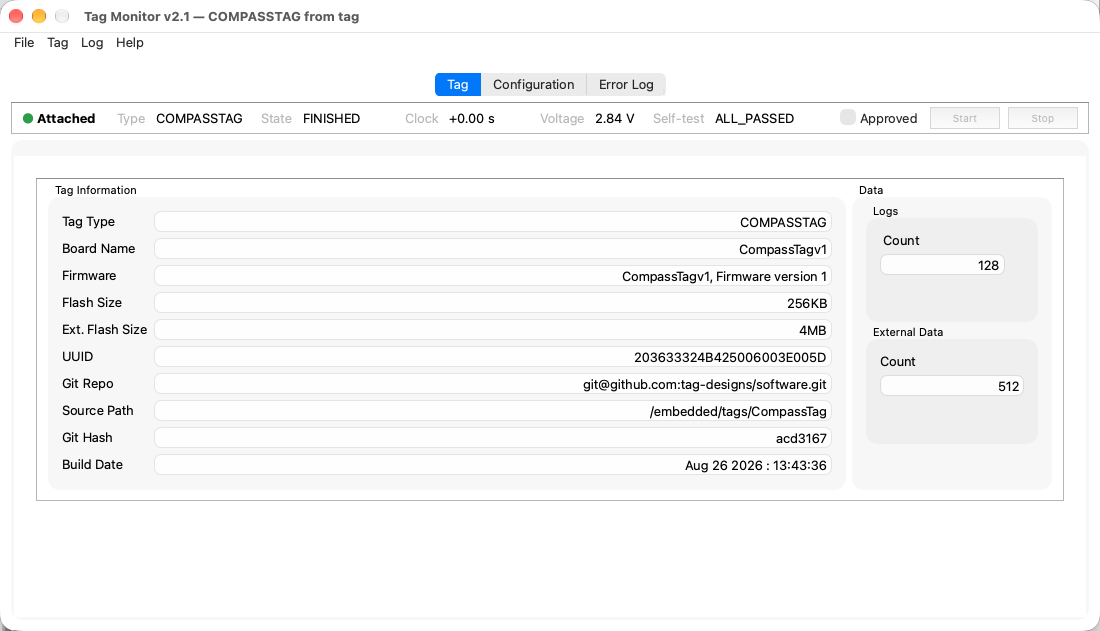
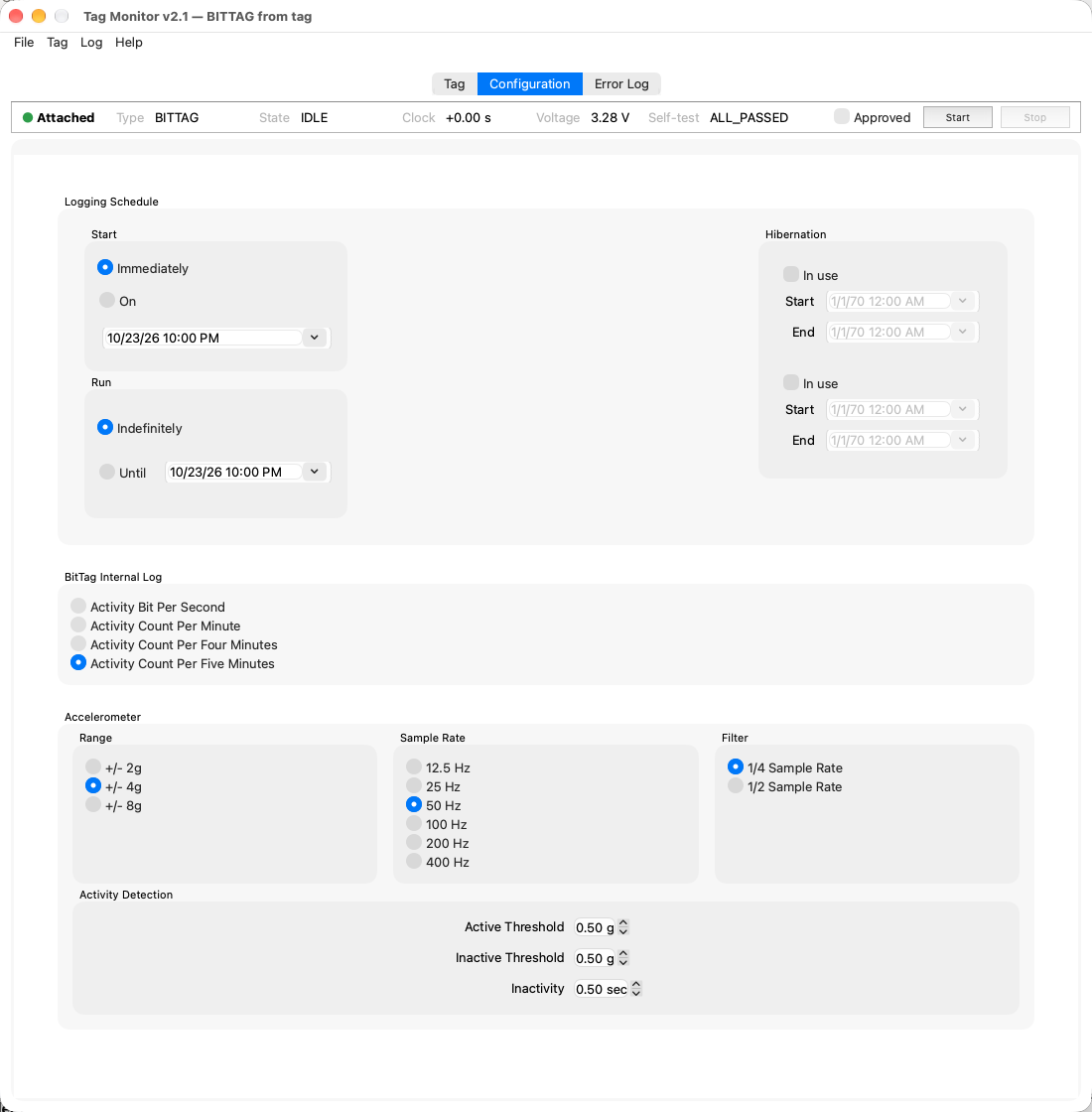
The main screens below show a CompassTag; the Configuration tab is shown for a classic BitTag, and for every tag type under Tag Configuration. Other tag types use the same screens; only the Configuration tab changes by tag family.
The window
Commands are in the menus at the top of the window. Right-click the Tag tab, the status strip or the Configuration tab for the same menus:
| Menu | Commands |
|---|---|
| File | New Configuration ▸, Open Configuration…, Open Recent ▸, Save Configuration…, Reset to Defaults, Download Data…, Save Error Log…, Quit |
| Tag | Attach, Detach, Read Configuration, Start, Stop, Synchronize Clock, Self-Test, Erase… |
| Log | Log Level, Clear Error Log |
| Help | Tag Monitor User Guide (opens this page), About Tag Monitor |
A command that does not apply to the tag's current state is greyed out: for example, Synchronize Clock and Self-Test need an IDLE tag, Stop a running one, and Download Data a finished one.
The status strip below the tabs is visible on every tab. It shows whether a tag is Attached or Detached, the tag's type (hover over it for the board UUID), its state, how far its clock is from this computer's, its voltage, and its self-test result. A clock more than 2 s off, or a self-test result other than ALL_PASSED, is shown in red. Approved, Start and Stop are on the right of the strip.
Opening screen
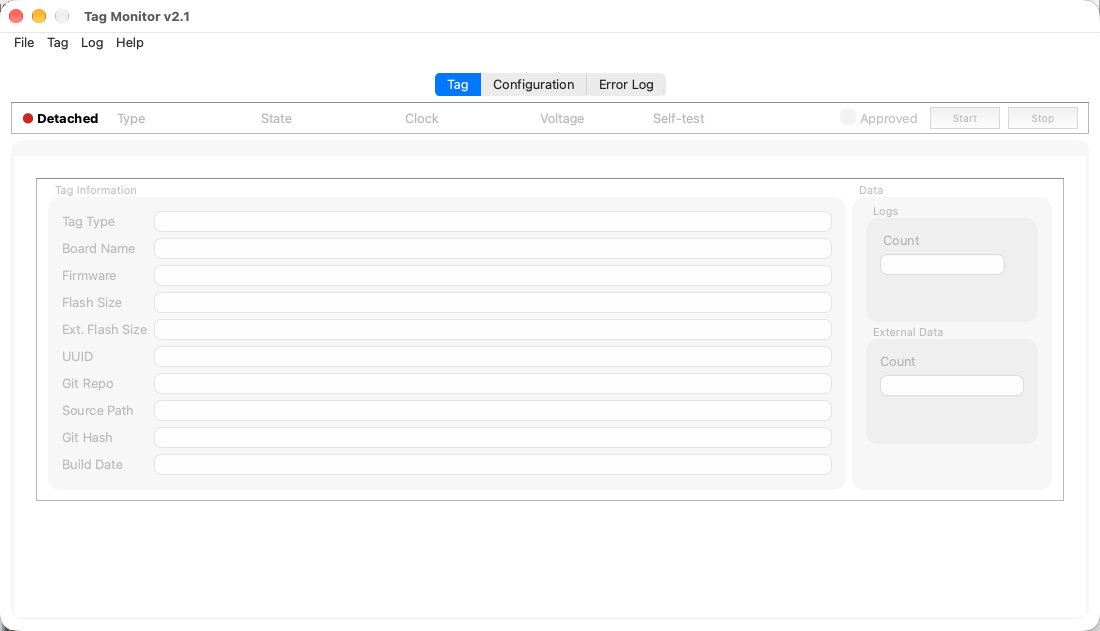
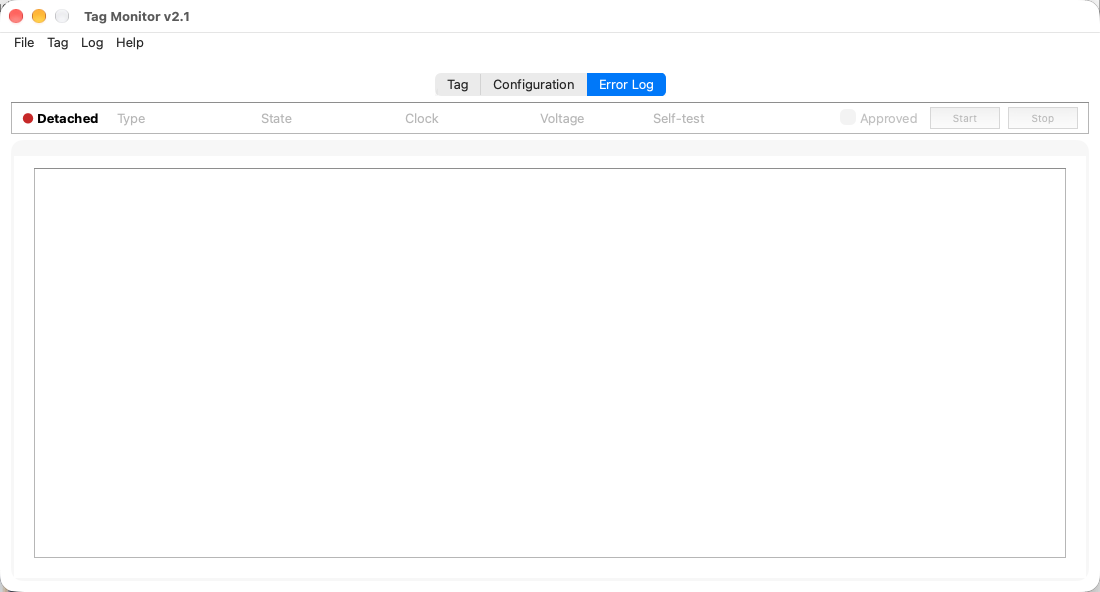
When Tag Monitor opens with no tag attached, the strip shows Detached and most commands are greyed out. Connect a base with an installed tag, then choose Tag ▸ Attach if the application did not attach automatically.
Tag
The Tag tab shows the tag's identity and how much data it holds. Right-click it for the menus, with the tag commands under Tag.
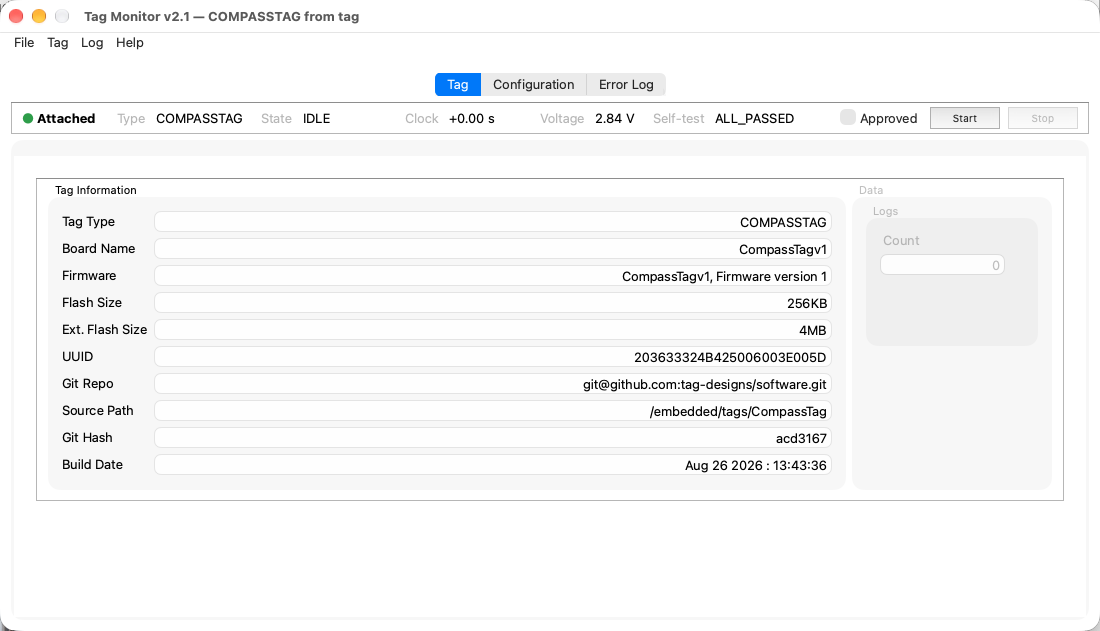
Check the state, voltage, self-test result, UUID, firmware version, and Git hash before using a tag in the field. The UUID identifies the physical tag and the Git hash identifies the firmware build loaded on it.
Choose Tag ▸ Synchronize Clock and Tag ▸ Self-Test before starting an
experiment; the strip shows the clock offset and the self-test result. The
self-tests usually finish in well under a second, so the tag's state rarely
shows TEST; the strip shows Running until the result arrives, and the Error
Log records each run's start and result with the tag's UUID. Calibration data
is collected with Qt Calibrate, or streamed for debugging with
the tag-cal command-line tool; Tag Monitor has no
calibration command, but Stop ends calibration mode on a tag left in it.
When a tag is running, the configuration cannot be edited and Stop is available.
If the tag stops answering for more than a few seconds, the strip shows its last known state in red with (no answer N s) after it, and an erase in progress says the same. A brief burst usually clears by itself. If it does not, choose Tag ▸ Detach and then Tag ▸ Attach.
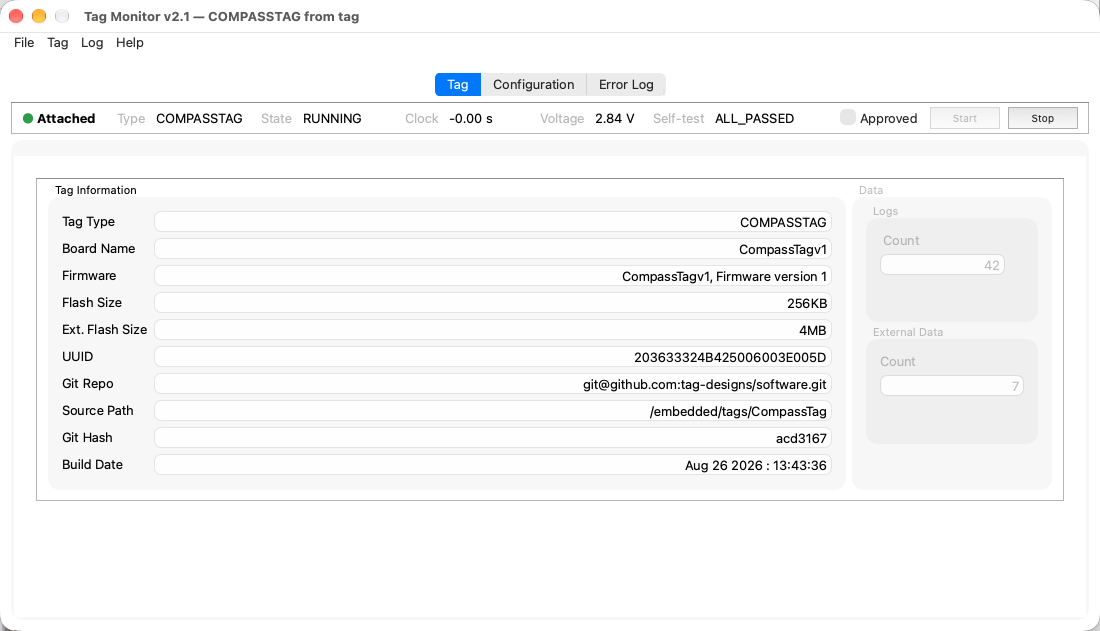
When a tag has finished logging, File ▸ Download Data… saves its data.
Configuration
The Configuration tab is a configuration editor. It holds one configuration, for one tag type, and shows it as a page of panels: every tag has a Logging Schedule panel, and tags with user-configurable settings add panels for them, such as the BitTag log format or the accelerometer. If the page is taller than the screen, it scrolls.
A configuration can come from three places, and none of them needs a tag:
- File ▸ New Configuration ▸ a tag type starts from that type's default configuration.
- File ▸ Open Configuration… (or Open Recent) opens a saved file; see Configuration Files.
- Attaching a tag, or Tag ▸ Read Configuration, reads the tag's own.
The window title shows which configuration is open, and marks it when it has unsaved changes. File ▸ Save Configuration… asks for a file, offering the one the configuration came from, and writes it. Reset to Defaults puts the tag type's default values back. Tag Monitor asks before discarding unsaved changes.
Start writes the configuration to the attached tag and starts it. It needs an IDLE tag of the configuration's tag type, so you can prepare a configuration with no tag attached, attach the tag, and start it. Attaching keeps a configuration you opened or created; to work on the tag's own instead, choose Tag ▸ Read Configuration. While a tag is running, its own configuration is shown but cannot be edited.
Start checks
Before it starts a tag, Start checks that:
- the tag's clock is within 2 s of this computer's;
- the tag reports its self-test as ALL_PASSED;
- Approved is ticked in the status strip.
Tick Approved once you have reviewed the configuration. Any change to the configuration's values clears it: an edit, New, Open, Read Configuration or Reset. Saving does not.
If a check fails, Start lists what failed and asks whether to Start Anyway or Cancel; Cancel is the default. A tag started anyway is recorded in the Error Log with its type, UUID and the checks that failed.
These commands are also on the page's popup menu, under File and Tag.
Error Log
The Error Log tab collects application and tag communication messages. If Tag Monitor behaves unexpectedly, check this tab first, and save the log (File ▸ Save Error Log…) if the message history will help diagnose the issue. Log ▸ Log Level sets how much detail is recorded. Right-click the log to copy, save or clear it.
Common Workflow
- Connect the USB base with the tag installed.
- Attach to the tag and verify tag type, UUID, firmware, Git hash, and voltage.
- Synchronize the tag clock.
- Run the self-tests and resolve any reported problem.
- Configure the schedule and any sensor settings for the experiment.
- Review the configuration and tick Approved.
- Press Start to write the configuration and begin logging.
- After logging finishes, download the tag's data before erasing or redeploying.
- Use the Error Log when attach, configuration, test, or download behavior is unexpected.
Tag Configuration
The Configuration tab is intentionally tag-specific: each tag type shows the panels for the settings its firmware accepts, and nothing else.
Each hibernation row has an In use checkbox. A row that is not in use has its dates greyed out and is sent to the tag as 1/1/70, a date long past, so the tag never hibernates for it. Check In use to use a row: a row with no date yet starts at the logging start, rounded up to the hour, and ends an hour later. Set its start and end inside the logging interval.
Every schedule time, for logging and for hibernation, is in UTC and on a whole hour. The calendar button picks the date; to change the hour, click the hour in the box and use the arrow keys, or type it. A tag checks once an hour, on the hour, whether a hibernation has ended, so a hibernation always ends on the hour. A time read from a tag that is not on the hour is rounded when shown: a hibernation start down, every other time up.
BitTag
Classic BitTag exposes the full ADXL362 accelerometer configuration. The schedule controls define the active logging interval and optional hibernation periods. The BitTag log format controls how activity is binned in memory: shorter bins provide finer time resolution and consume storage faster.
The Accelerometer panel configures ADXL362 range, sample rate, anti-alias filter, and activity detection thresholds. Most experiments primarily tune the active and inactive thresholds plus inactivity duration; range, rate, and filter are usually changed only for specialized deployments.
BitTag LE
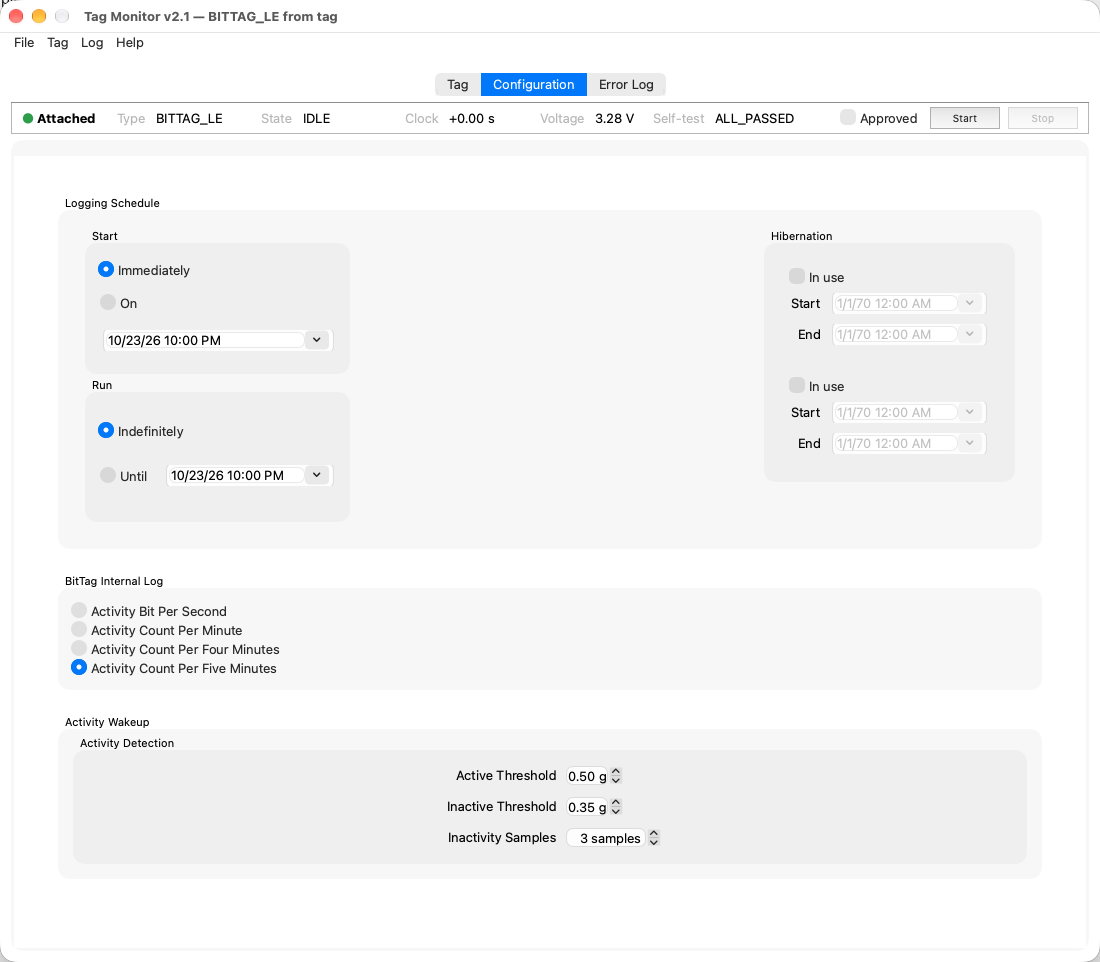
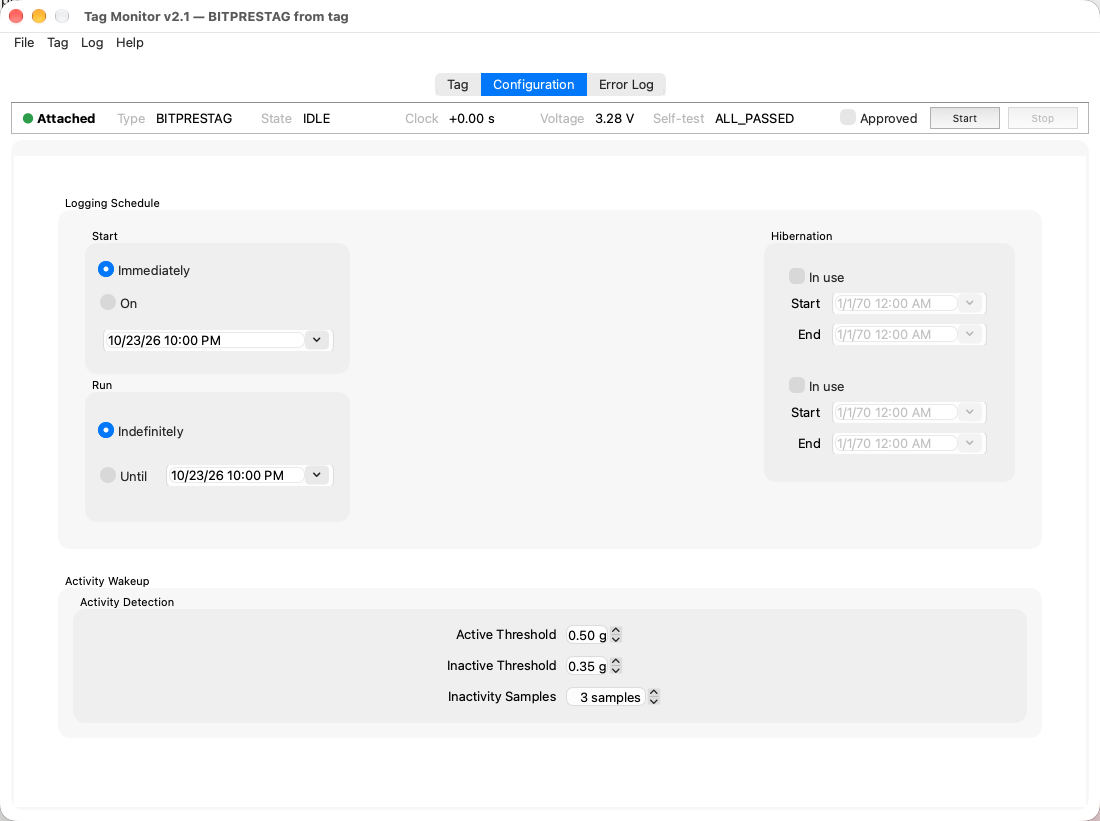
BitTag LE uses the same schedule and log format as classic BitTag. Its low-energy firmware fixes the accelerometer's range, rate and filter, so the Activity Wakeup panel shows only the fields users are expected to tune: the ADXL362 wake/activity thresholds and the inactivity sample count. In this mode, inactivity is a count at the wake-mode sample rate rather than a duration in seconds.
BitPresTag
BitPresTag combines BitTag-style activity logging with pressure-tag behavior. Use the schedule fields for the deployment interval and hibernation windows. The Activity Wakeup panel exposes the wake/activity fields that apply to the BitPresTag firmware. As with BitTag LE, firmware fixes the other accelerometer parameters.
PresTag
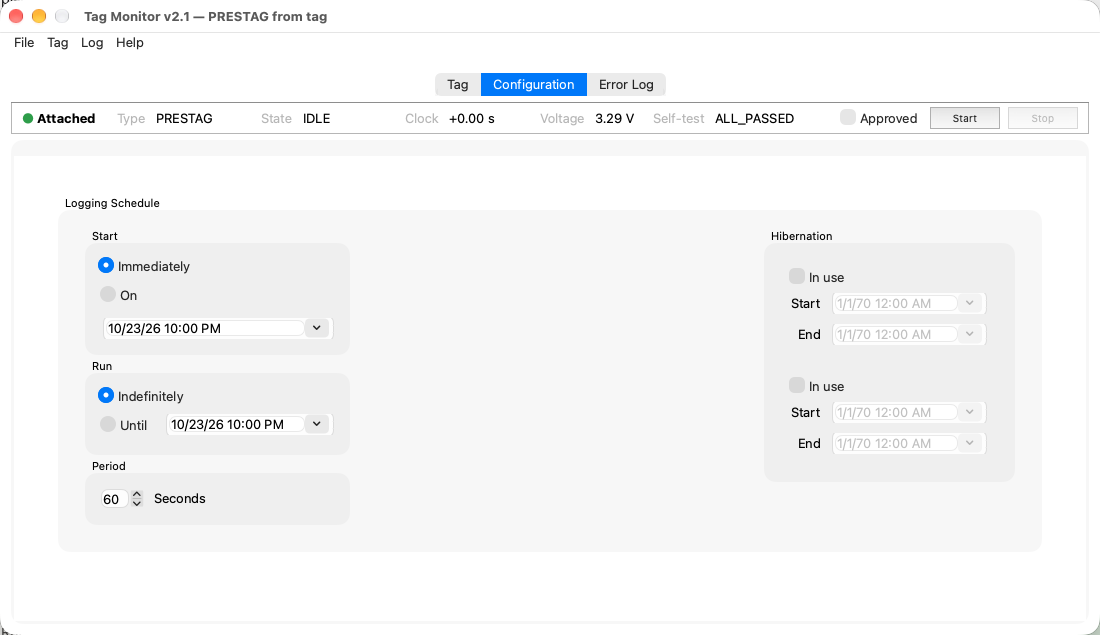
PresTag shows the schedule with one more setting, the sampling Period in seconds. It has no separate sensor controls.
IMUTag
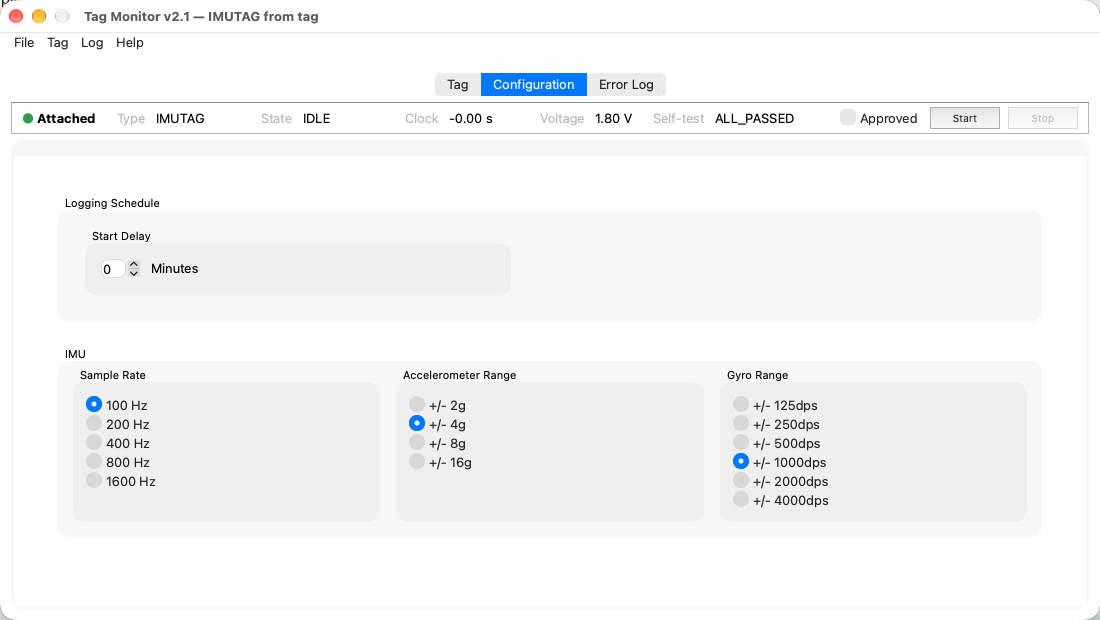
IMUTag's schedule is a Start Delay in minutes: logging begins that long after start, and runs until the tag is stopped. The IMU panel configures the sample rate and the accelerometer and gyro ranges.
CompassTag
CompassTag uses the schedule for deployment timing and hibernation windows. It has no separate sensor controls in Tag Monitor.