SensorViz
Use SensorViz to inspect SQLite sensor logs from pressure, activity, IMUTag, and CompassTag logs. The application is intended for comparing raw sensor streams and derived views, such as altitude computed from pressure, filtered activity, IMU magnitude streams, and compass-derived heading/orientation streams.
At startup, File > Load and the Help menu are available. Most commands become available after you load a SQLite log file. SensorViz enables additional menu items when the loaded file contains the streams or metadata needed by those features.
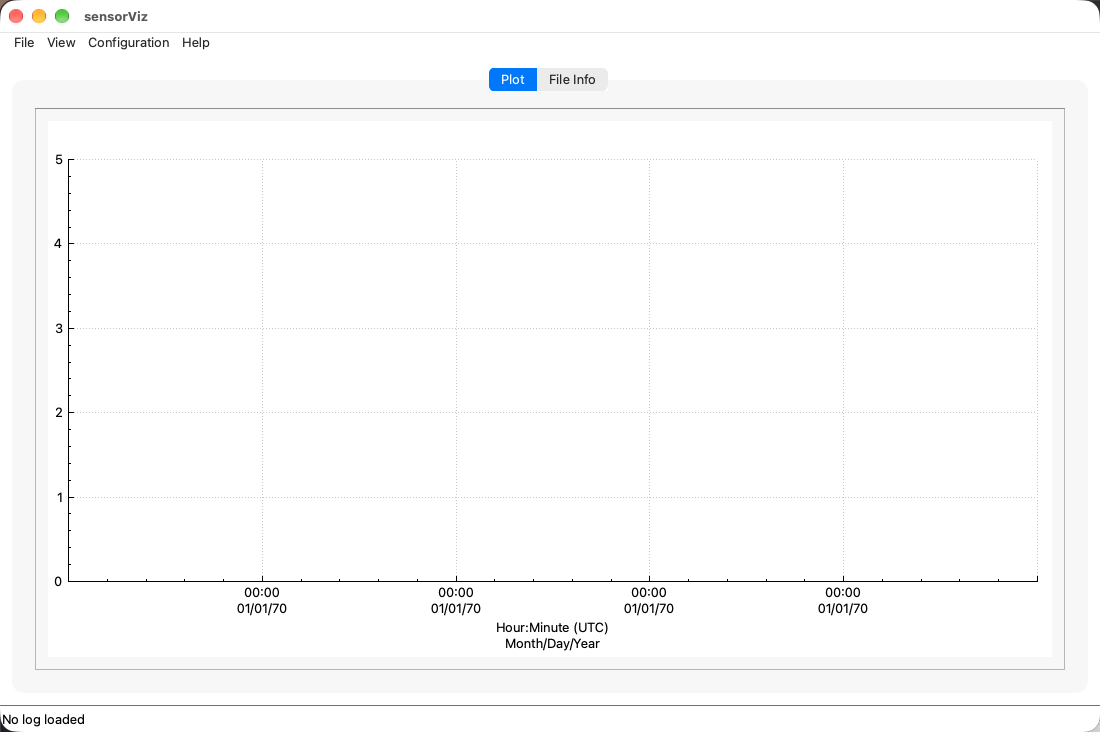
Open a Data File
- Open SensorViz.
- Choose File > Load.
- Select a downloaded SQLite log file with the
.db3extension. - Review the loaded tag and file details in the File Info tab.
- Return to the plot tab to inspect the available sensor streams.
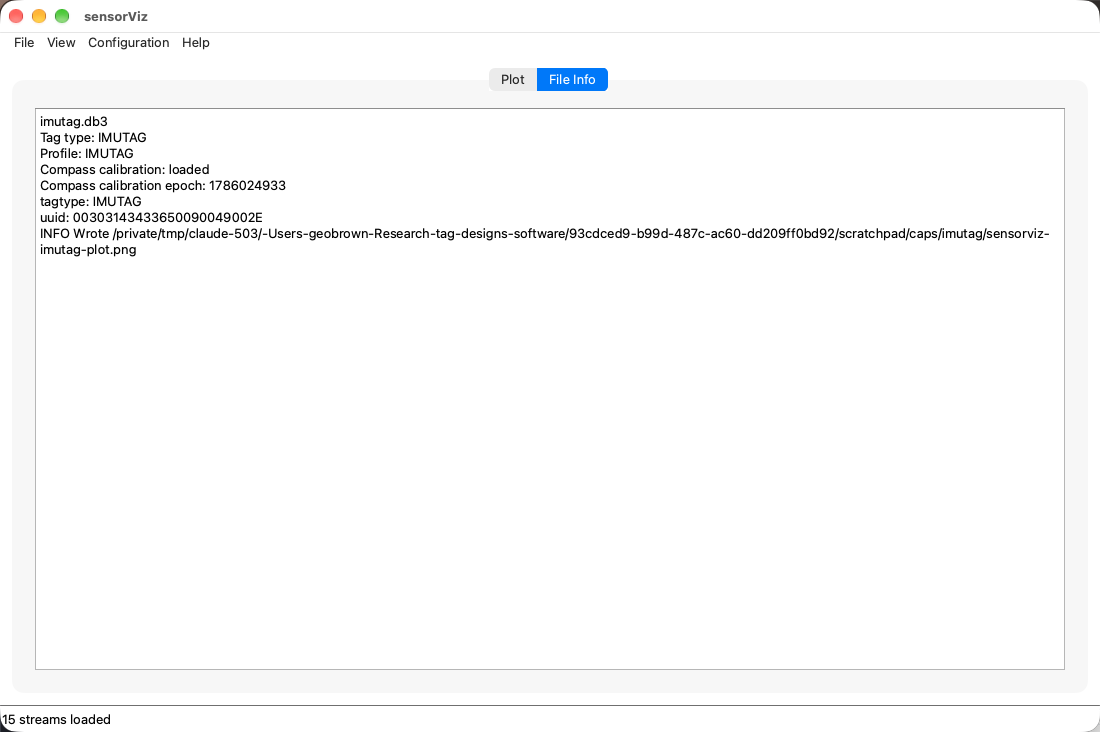
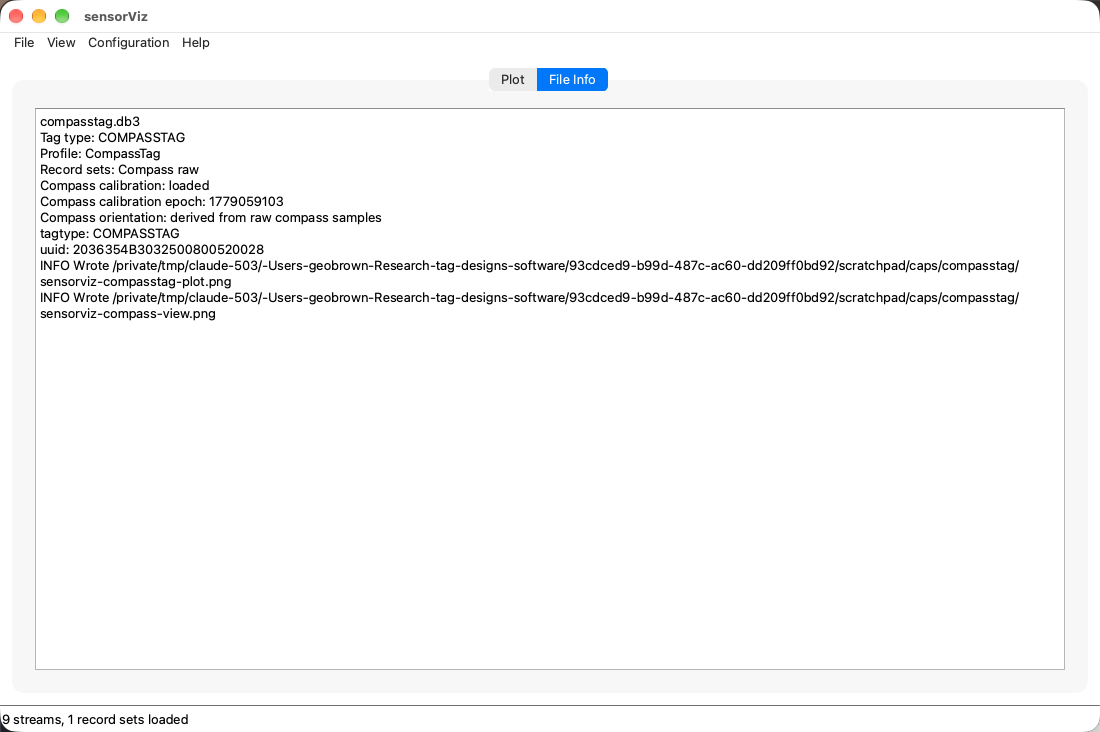
The File Info tab lists the file name, tag type, profile name, loaded record
sets, compass calibration status when present, and other log metadata. Qt
diagnostic messages are also routed to this tab. The
SQLite Log Format reference describes the
metadata and sensor tables that SensorViz reads from .db3 files.
File Menu
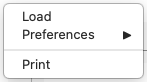
The menu sections below describe the menu bar, but the same command groups are also available from the plot context menu. Right-click inside the plot to open a popup with File, View, and Configuration submenus while you are working directly with the graph.
The File menu contains log-level actions, preference file commands, and printing. The exact enabled state depends on whether a log has been loaded.
| Menu item | Function |
|---|---|
| Load | Opens a SensorViz SQLite log file. Loading a file replaces the current stream list, resets manual y-axis ranges, updates the File Info tab, and rebuilds the plot. |
| Preferences | Opens a submenu for loading, storing, or clearing SensorViz display preferences. |
| Opens a print preview for the current plot. The preview can then be printed through the platform print dialog. |
File > Preferences Submenu
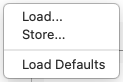
The Preferences submenu stores display choices by tag type. It is enabled after a log is loaded.
| Menu item | Function |
|---|---|
| Load... | Loads a SensorViz preferences JSON file and applies the matching tag-type entry to the current log. |
| Store... | Writes the current preference overrides to formatted JSON. SensorViz stores only differences from built-in defaults. |
| Load Defaults | Removes overrides for the currently loaded tag type and reapplies built-in SensorViz defaults. |
Preference files may include visible stream selections, stream colors, and axis side choices. They do not store y-axis ranges, sea-level pressure, declination, UTC offset, or battery direction because those are analysis/session settings.
Help Menu
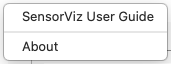
The Help menu opens the SensorViz guide and displays application information.
| Menu item | Function |
|---|---|
| SensorViz User Guide | Opens the installed SensorViz user guide in the system browser. In a development build, this command opens the generated MkDocs page when it is available. |
| About | Shows SensorViz application information. |
View Menu
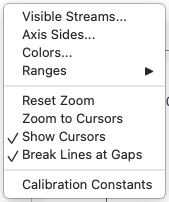
The View menu controls what appears on the plot and how visible streams are drawn. Stream and range entries are rebuilt from the loaded file, so the menu may be short for simple tags and longer for IMUTag or CompassTag logs.
| Menu item | Function |
|---|---|
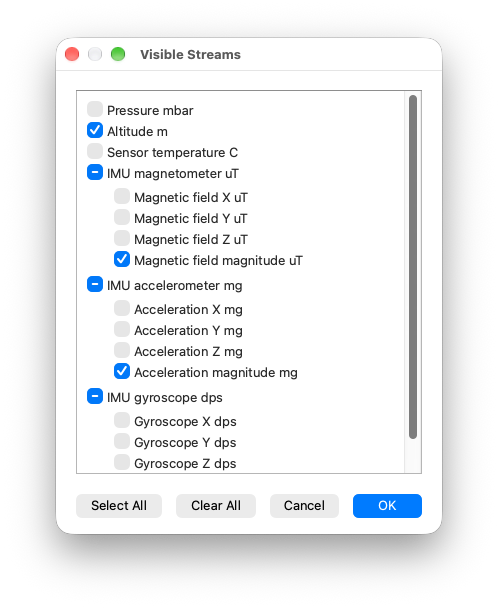
| Visible Streams... | Opens a checklist of loaded raw and generated streams. Use it to show or hide streams without reloading the log. Streams that share an axis, such as the IMUTag accelerometer x/y/z and magnitude, are listed under a group checkbox: check it to show the whole group, uncheck it to hide the group, or check members individually. The group checkbox is partly checked while only some members are shown. |
| Axis Sides... | Opens a dialog that assigns each y axis to the left or right side of the plot. A group of streams sharing an axis is one row. This is useful when streams have different units or overlapping ranges. |
| Colors... | Opens a dialog for changing the display color of each visible stream. Each stream can be reset to its default color. |
| Ranges | Opens a submenu with one range command for each visible stream. |
| Reset Zoom | Restores the full loaded time span and clears manual y-axis ranges. Fixed metadata ranges and data-derived default ranges are reapplied. |
| Zoom to Cursors | Zooms the time axis to the interval between the two vertical cursors. |
| Break Lines at Gaps | When checked (the default), a plotted line stops where the log has a gap in its data, such as missing pages, and the mouse readout shows no value inside the gap. Uncheck it to join the samples on either side, as older versions did. The choice is remembered with the other preferences for the tag type. |
| Calibration Constants | Shows read-only CompassTag calibration constants when the loaded log includes compass calibration metadata. |
Default stream visibility depends on the stream id. Activity, pressure, and pressure-sensor temperature default to visible. Core temperature, voltage, and altitude default to hidden. CompassTag heading and acceleration default to visible; pitch, roll, dip, and magnetic field default to hidden.
Shared Axes and the Legend
Most streams get a y axis of their own, drawn in the stream's color. Streams
that the log records as one group with the same units share a single axis
instead: IMUTag accelerometer, gyroscope and magnetometer x/y/z, each with its
generated magnitude. A shared axis is labelled with the group name and units,
for example IMU accelerometer mg, and its range covers every visible member.
The members of a group are drawn in related colors (accelerometer blues, gyroscope reds and oranges, magnetometer greens), with the magnitude in a darker shade and a heavier line. While any axis is shared, a legend names its traces, one column per shared axis. Drag the legend, or the metadata box, to move it out of the way of the data; the position is kept until SensorViz is closed.
View > Ranges Submenu
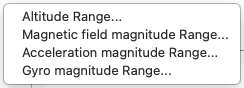
The Ranges submenu is rebuilt from the streams currently visible on the plot. Each item is named for one stream, for example Pressure Range... or Altitude Range....
| Menu item | Function |
|---|---|
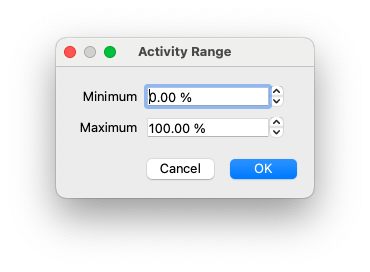
| Stream Range... | Opens a dialog for the selected stream with minimum and maximum y-axis values. The dialog uses the stream units when units are available. For a stream on a shared axis, the range applies to the whole axis. |
Range defaults are chosen in this order:
- A manual range set by the user.
- A fixed display range from SensorViz metadata, such as activity
0-100, voltage0-5 V, or core temperature0-50 C. On a shared axis this applies only while its stream is the axis's only visible member. - The loaded data minimum and maximum with padding, over every visible member of a shared axis.
Pressure and altitude are linked until altitude receives its own explicit range. If you set a pressure range while altitude is visible, SensorViz derives a matching altitude range. Activity and the low-pass activity filter are also kept on the same range until one of them is adjusted independently.
Configuration Menu
The Configuration menu controls plot presentation and derived-view parameters.
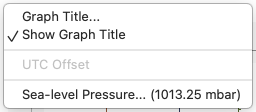
| Menu item | Function |
|---|---|
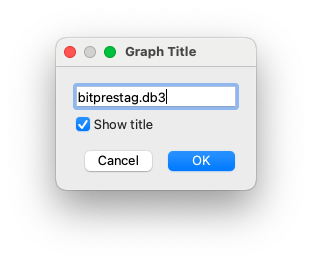
| Graph Title... | Opens a dialog to edit the title displayed above the plot. New files default to showing the loaded file name as the title. |
| Show Graph Title | Shows or hides the current graph title. |
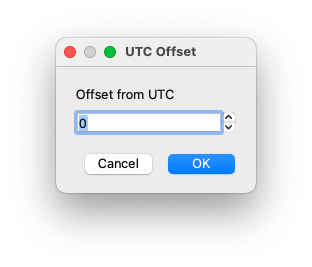
| UTC Offset | Sets the UTC offset used for time-axis labels. The stored sample times remain UTC epoch seconds. |
| Sea-level Pressure... | Sets the mean sea-level pressure used to calculate altitude from pressure. This item appears when the loaded log has a pressure stream. |
| Activity Filter | Shows or hides a low-pass filtered activity stream. When enabled, SensorViz asks for the filter time constant in seconds. This item appears when the loaded log has activity data. |
| Declination... | Sets magnetic declination in degrees for true-heading display. This item appears when the log has compass orientation: CompassTag raw samples with calibration constants, or orientation written by dataprocessing. |
| Battery Forward | Toggles the CompassTag heading convention. When unchecked, heading is rotated by 180 degrees to match the opposite physical orientation. This item appears whenever Declination... does. |
Sea-level pressure and declination values are shown in the menu text after they are available, so the active parameter is visible without reopening the dialog. The plot also annotates altitude with the current sea-level pressure and heading with the current declination.
Configuration items are data-dependent. Pressure logs show sea-level pressure controls, activity logs show the activity filter, and CompassTag logs with raw compass samples and calibration constants show declination and battery-direction controls.
Derived Views
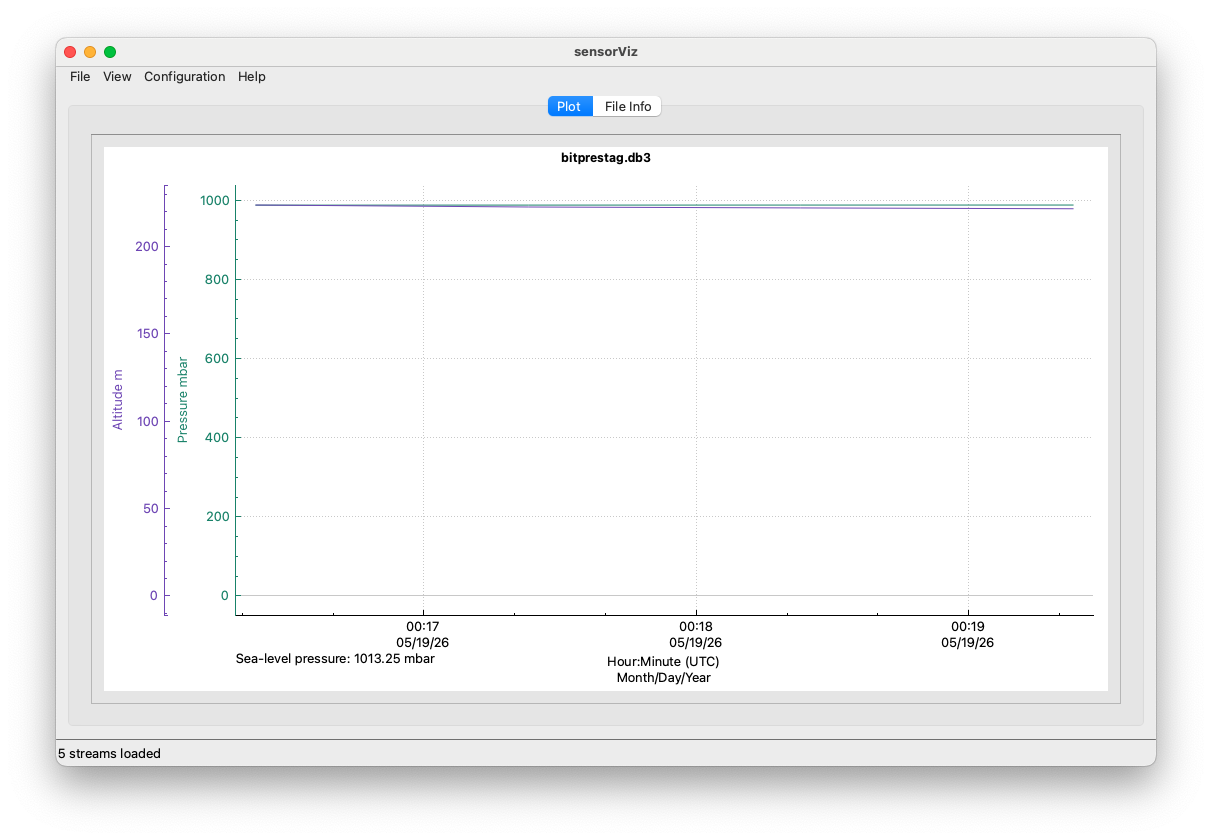
SensorViz creates some streams from loaded data so they can be inspected beside raw streams.
| Derived view | How to control it |
|---|---|
| Altitude | Generated automatically when pressure is present. Show or hide it from View > Visible Streams... and adjust its calculation with Configuration > Sea-level Pressure.... |
| Activity filter | Enable or disable it with Configuration > Activity Filter. The filter is display-only and does not alter the raw activity stream. |
| Compass heading and orientation streams | Generated automatically when the log contains raw compass samples and calibration constants, or orientation written by dataprocessing. Show or hide individual compass streams from View > Visible Streams.... Adjust heading display with Configuration > Declination... and Configuration > Battery Forward. |
IMUTag Logs
IMUTag logs typically contain high-rate accelerometer and gyroscope samples plus
lower-rate magnetometer and pressure samples. SensorViz keeps the raw x/y/z
component streams available in View > Visible Streams..., then generates
summary magnitude streams that are easier to read on the first plot. Each
sensor's components and magnitude share one y axis when shown together; see
Shared Axes and the Legend. IMUTag
logs use elapsed seconds on the x-axis when the SQLite file stores samples by
elapsed time rather than UTC epoch.
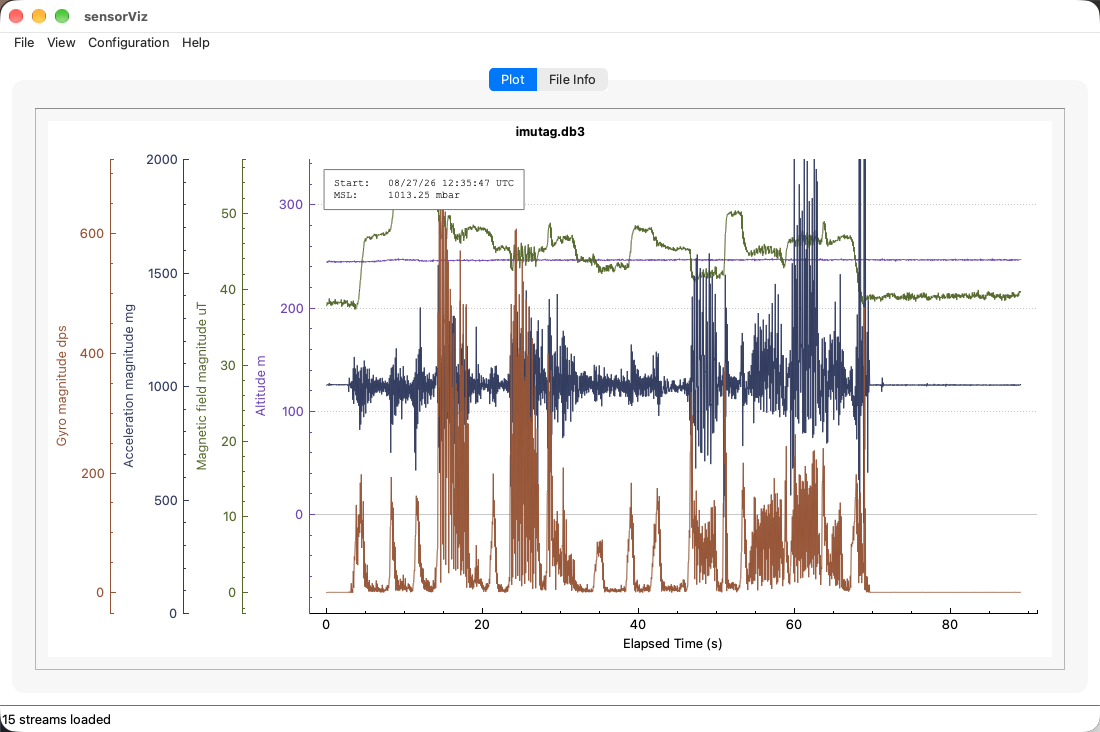
The IMUTag File Info example above shows the metadata check to make before you start changing display settings.
An IMUTag log run through dataprocessing with the imu-compass-orientation
processor also gets heading, pitch, roll, dip and field-strength streams and the
compass panel, built from the orientation the processor stored.
CompassTag Logs
CompassTag logs add a raw compass record set and calibration metadata. When both are present, SensorViz generates heading, acceleration, pitch, roll, dip, and field-strength streams from the loaded data.
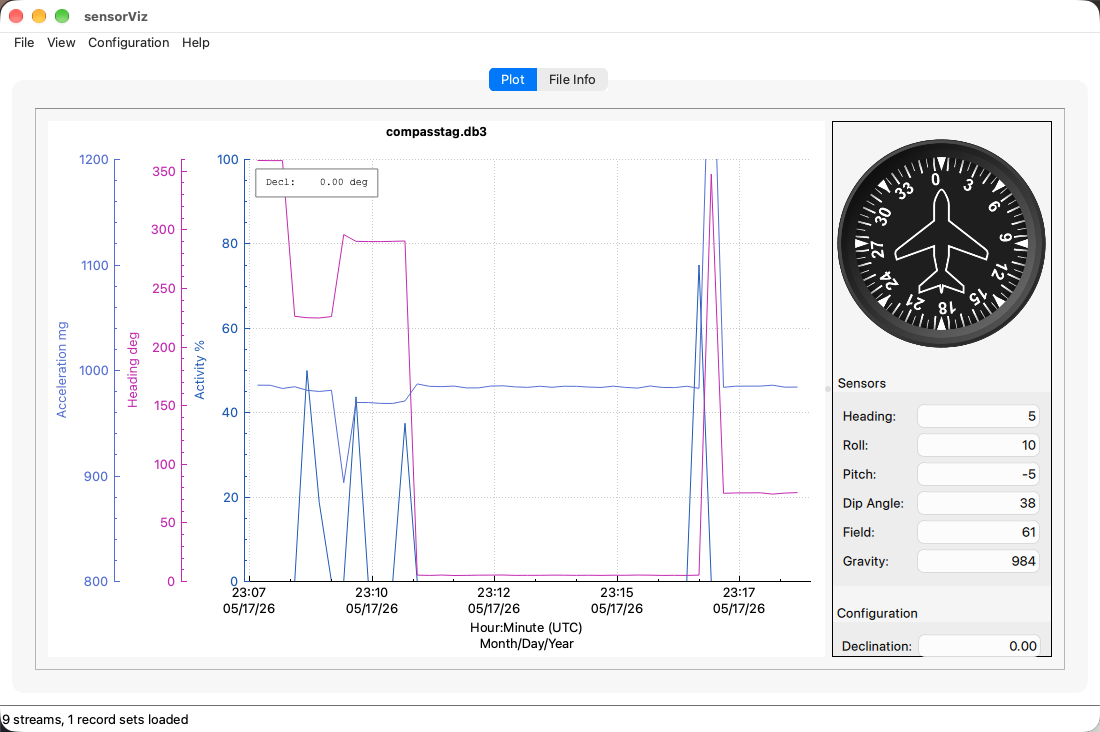
CompassTag logs may also show a compass/orientation panel beside the plot. Moving the mouse over the plot updates that panel to the nearest loaded compass sample.
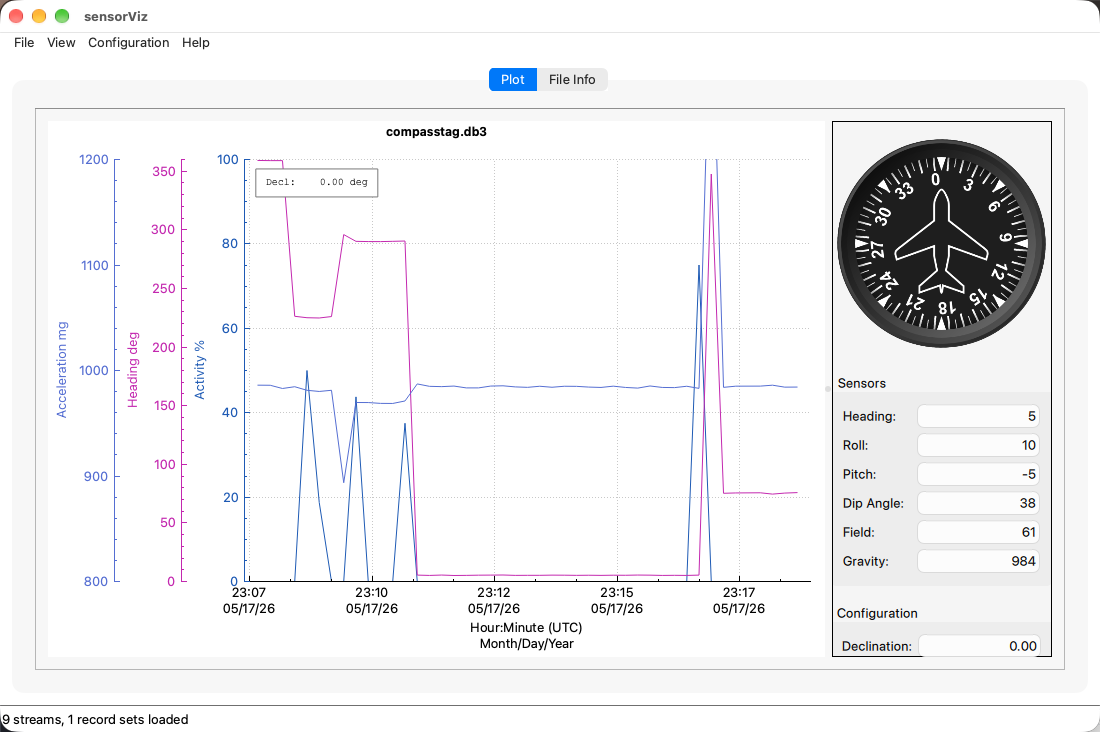
The CompassTag File Info tab reports the compass calibration status, the
loaded record sets and where compass orientation came from -- derived from the
raw samples, or stored by dataprocessing -- which helps confirm that the orientation panel and
CompassTag-specific configuration commands should be available.
Plot Context Menu
Right-click the plot to open a context menu that mirrors the top-level File, View, and Configuration menus. The context menu is useful when working directly inside the plot because it exposes loading, preferences, stream visibility, ranges, zoom commands, printing, and derived-view settings without moving to the menu bar.
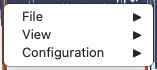
The context menu only shows data-dependent items that make sense for the current file. For example, View > Ranges is populated from visible streams, and CompassTag configuration items appear only when the required compass data and calibration constants are present.
Cursor And Zoom Controls
SensorViz uses two vertical cursors for selecting a time interval. Double-click the plot to move the left cursor. Shift-double-click to move the right cursor. Choose View > Zoom to Cursors to zoom the x-axis to the selected interval. Choose View > Reset Zoom to return to the full loaded time range.
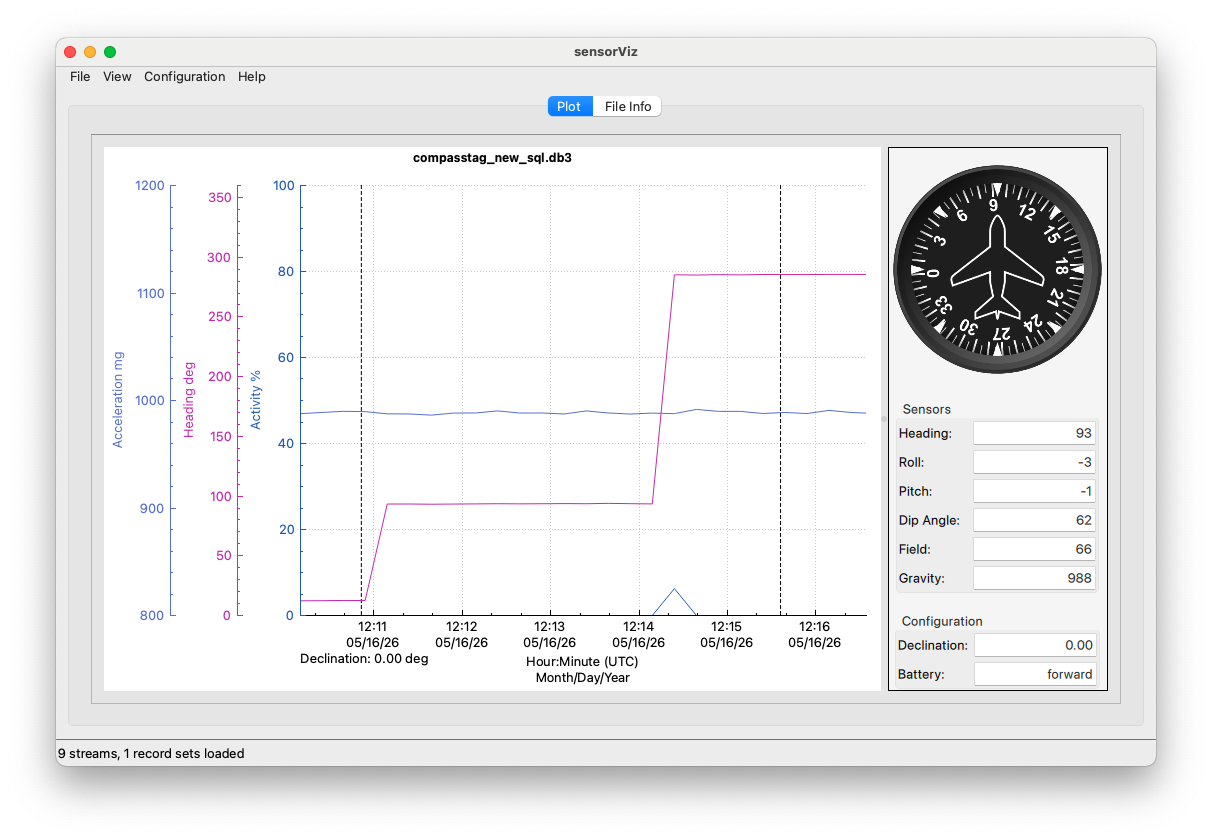
The mouse tooltip reports the time at the pointer and nearby stream values. For CompassTag logs, moving over the plot also updates the orientation panel.
Print Preview
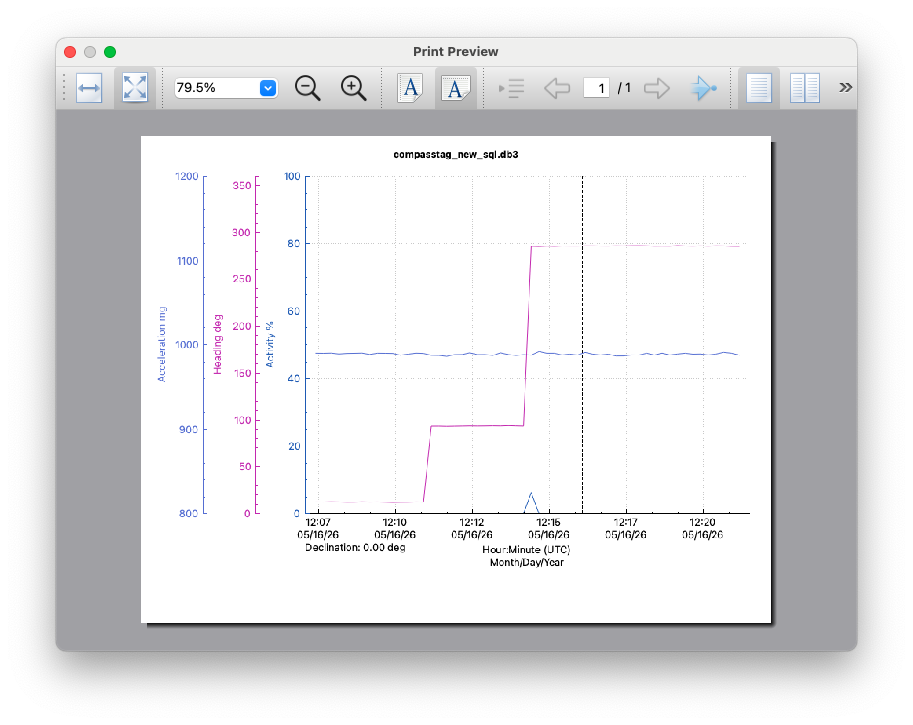
Choose File > Print to open a print preview of the current plot. SensorViz renders the plot in landscape orientation and preserves the on-screen aspect ratio for printing.
Troubleshooting
| Symptom | What to check |
|---|---|
| A file does not load | Confirm that the file is a SQLite log with the expected .db3 format. SensorViz reports loader errors in a modal message. |
| A file loads but no expected stream appears | Check whether the log contains stream metadata for that sensor table. SensorViz builds the stream list from the SQLite streams metadata. |
| A menu item is disabled or hidden | Load a log first, then confirm that the file contains the stream or metadata required by that command. Pressure controls require pressure data, activity filter requires activity data, and CompassTag controls require raw compass samples plus calibration constants. |
| A custom color, visibility, or axis side does not reappear | Load the matching preferences JSON file with File > Preferences > Load.... Preferences are keyed by tag type or profile name. |
| The y-axis range looks wrong | Use View > Ranges to set an explicit range, or use View > Reset Zoom to clear manual ranges and return to defaults. |